+44 782 583 7455

HP 953XL not recognised after a firmware update? What to check

1. Did the error begin after a firmware update?
If HP 953XL compatible cartridges were working and the printer suddenly rejects them, record what changed before replacing anything. Look for the exact message, such as an incompatible-cartridge warning or a non-HP-chip message. Photograph the complete screen, including the colour and any error code.
HP documents that firmware on dynamic-security-enabled printers can change cartridge acceptance and block cartridges that previously worked. That makes an update a relevant diagnostic clue. It does not prove that every cartridge error is caused by firmware: a wrong family, region mismatch, installation problem or damaged contact still needs checking.
Write down whether the fault appeared immediately after a displayed update, after the printer restarted, or when a newly delivered cartridge was fitted. If you did not see an update, say so. A clear timeline helps us assess the supplied cartridge rather than assume a version change from the error alone.
2. Cartridge chips and printer firmware are different
| Component | What it means for diagnosis |
|---|---|
| Cartridge chip | The electronics fitted to the ink cartridge that the printer reads. |
| Printer firmware | The software running inside the printer, including its cartridge-acceptance behaviour. |
| Computer driver or HP app | The software you use to send jobs or manage the printer; its version is not necessarily the printer’s firmware version. |
An update to a laptop application is not, by itself, evidence that the printer firmware changed. Equally, changing the cartridge does not downgrade the software inside the printer. When contacting us, identify which update you saw and where it appeared.
A power cycle restarts the printer. It does not undo an installed firmware update or convert the chip into a different type. A factory reset is also not a general way to reinstall older firmware. Avoid erasing settings in the hope that it will reverse a cartridge-acceptance change.
3. What Ink-Prints does before dispatch
A later change to the printer’s firmware can still affect recognition. For example, cartridges can leave us with updated chips, while HP releases a new printer firmware version during delivery. Your printer might then install that version before you fit the cartridges. That later manufacturer update is outside our control.
This is why the dispatch date, installation date and printer firmware version matter when we investigate a report. It is not a claim that every shipment will be affected, or that updated chips are compatible with every future firmware release.
If recognition fails after delivery, contact us with the evidence listed below. Please do not keep opening additional sets or assume that every colour is defective. We will review the order, cartridge labels and printer details before suggesting the next check.
4. Confirm the printer model, cartridge family and region
Read the full model label and the cartridge numbers specified for that printer’s market. HP uses regional cartridge families, so a familiar OfficeJet model name is not enough on its own. If the printer was bought overseas or previously regionalised, tell us.
HP lists 953/953XL for relevant regional versions of OfficeJet Pro model groups including 8210, 8710, 8720 and 8730, among others. Use HP’s cartridge lookup for the complete model and region instead of assuming that a 952, 953, 954 or 955 cartridge is interchangeable.
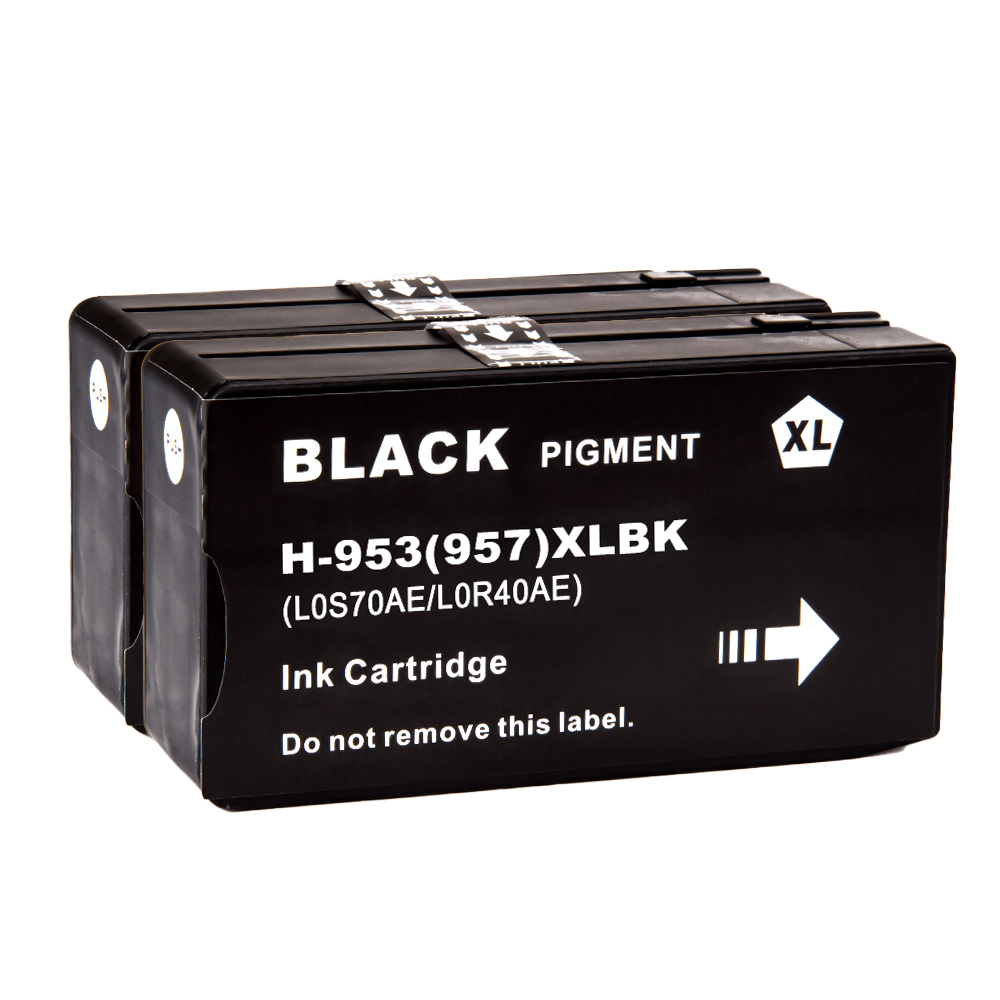
Also photograph the whole installed set. Ink-Prints has seen recognition faults in customer enquiries involving mixed original and compatible cartridges. That remains a useful check even when firmware is suspected. See our general cartridge-recognition guide for installation and mixed-set diagnostics.
For printers with account or supply-programme restrictions, include that history too. HP+ requirements and subscription-cartridge issues are separate questions; they should not be diagnosed solely by the word “HP” on a cartridge.
5. Find and record the installed firmware version
Look for the firmware version in the printer’s information or status pages, its official app, or its Embedded Web Server. The location depends on the model and installed version. Use the model’s official instructions if the menu names differ.
Take a photo or screenshot showing the model and complete version string. A phrase such as “latest firmware” is less useful because it can change between the date of dispatch and the day we read your message.
You do not need to install an update simply to collect this information. If the screen offers an update, note what is offered and distinguish it from the version already installed. Do not interrupt an update that is already running.
6. Review automatic-update settings where supported
Where the printer provides a choice, you can review whether firmware installs automatically or requires your approval. Notification or manual-approval settings let you check an update’s compatibility implications before it is installed.
- Open the official HP app or the printer’s own management interface using the procedure for your model.
- Locate the firmware-update settings and read the choices actually available.
- If supported, choose notification or approval before installation instead of automatic installation.
- Check whether the associated HP account has a separate firmware-update setting, and keep the choices consistent where HP requires this.
- Retain a screenshot of the chosen setting with your printer details.
Do not follow a menu path for a different OfficeJet just because both printers use 953XL. HP explains that some services require automatic updates and that settings can be locked while enrolled. If the choice is missing, record that screen and ask HP or Ink-Prints about your exact model and service configuration.
Choosing manual updates means taking responsibility for reviewing them. Updates can include security and reliability fixes as well as changes affecting cartridges. Do not assume that avoiding every future update is a risk-free permanent solution; weigh the release information and your printer’s use before deciding.
7. Can a firmware downgrade restore compatibility?
There is no single downgrade procedure that applies to all HP 953XL printers. Whether an older version can be installed depends on the exact printer, installed firmware, available file and permitted installation route. A missing automatic-update option does not establish that a downgrade is possible or necessary.
Contact us or HP with the model, firmware version and error before attempting a rollback. If a model-specific recovery procedure is proposed, it needs a verified firmware source and a clear explanation of the intended version. Do not use an executable or firmware image from an unverified download link.
This guide does not provide a universal rollback file, a promise that older firmware will accept your cartridges, or instructions to bypass a printer’s security or programme restrictions. Downgrading can also remove fixes delivered by newer firmware. The appropriate remedy might instead involve the supplied cartridge or manufacturer support.
Do not switch off the printer during any firmware installation. A reset, chip update and firmware rollback are different operations; none should be substituted for another without understanding the model-specific procedure.
8. Send us the evidence needed for the next step
- Full printer model and country of purchase.
- Ink-Prints order number, delivery date and first installation date.
- Photo of the printer and its readable model label.
- Photos of all cartridges while installed, with their labels visible.
- Photos of the error on both the printer and computer, if shown.
- Screenshot of the installed firmware version and update settings.
- Whether originals and compatibles are mixed, and which checks you tried.
Tell us if the same cartridges worked before the change, or if these are their first installation. Keep the photos focused on the fault and crop out account passwords or unrelated personal documents.
If the cartridges are recognised but printing has gaps or missing colours, use our print-quality troubleshooting guide. Cleaning a printhead is a different task from resolving a firmware-related chip warning.
HP 953XL availability and further help
At publication on 13 October 2026, Ink-Prints did not have HP 953XL cartridges available to order. This is a support article, not an in-stock product listing. Contact us about your existing order or current availability; do not assume a compatible version is available for your installed firmware before checking.
Need help with an existing Ink-Prints cartridge?
Send your model, order number and exact error to start the enquiry. We will explain how to provide the cartridge and firmware photographs for assessment.
Contact Ink-PrintsFrequently asked questions
Why can a cartridge work before an update and fail afterwards?
On dynamic-security-enabled printers, firmware can change which chip or circuitry is accepted. The exact message and version are needed to assess whether that is the cause in your case.
Does switching off automatic updates undo an update?
No. It changes the future update behaviour where that setting is supported. It does not remove the version already installed.
Are updated cartridge chips guaranteed against future HP updates?
No. Ink-Prints updates supplied chips before dispatch, but cannot control subsequent manufacturer firmware changes.
Manufacturer references
Use the official support page for your exact model when reviewing firmware or cartridge requirements. The chip-preparation statement describes Ink-Prints’ own process, not an HP approval or a future-compatibility guarantee.