We use cookies to make your experience better. To comply with the new e-Privacy directive, we need to ask for your consent to set the cookies. Learn more.
 +44 782 583 7455
Ink cartridge not recognised? What to check and how to fix it
Quick answer: Record the exact error, check the cartridge code against your full printer model, and tell us whether original and compatible cartridges are installed together. Check installation using your model’s instructions before trying a restart. If the error remains, send Ink-Prints the model number and photos of the printer, installed cartridges and error screens. This guide is for inkjet cartridges, not toner or EcoTank refill bottles.
1. Identify the message and the affected cartridge
“Cartridge not recognised”, “Cannot Detect”, “incompatible cartridge” and “low ink” are not interchangeable messages. Start with the exact wording and any support code. Photograph the complete screen before dismissing it, including the colour or cartridge position named in the warning. If the computer and printer show different messages, keep a photo of each.
Write down what changed immediately before the fault: a new cartridge, a complete set, a move to another printer or a software update. Tell us whether the printer worked with the previous cartridges. This history is often more useful than repeating the same replacement several times.
If all cartridges are accepted and the printer produces pages with a missing colour, use our missing-colours guide instead. Head cleaning addresses print quality; it is not a universal fix for a cartridge that the printer refuses to recognise.
2. Match the full printer model and cartridge code
Check the model label on the printer, rather than a shortened name in a computer’s printer list. Compare that full model with your order and the code on every cartridge. Similar-looking cartridges, neighbouring printer model numbers and the same brand name do not establish compatibility.
For example, Epson 603XL and 604XL are separate families, and Brother LC422XL and LC426XL fit different model groups. XL describes an option within its family, not a universal fitting. Our printer pages and comparison guides can help you confirm the intended match.
Also tell us if the printer was bought outside the UK, if it previously used subscription supplies, or if the cartridge label differs from the order. Do not force a cartridge into a holder because its colour appears right. If the codes do not match the listed printer, contact us before opening additional cartridges.
3. Are original and compatible cartridges mixed?
What we see in customer enquiries: Ink-Prints has repeatedly received recognition-error reports where original and compatible cartridges were installed together, including Brother, Epson, HP and some Canon printers. Checking the complete installed set is therefore one of our first diagnostic questions.
List each installed colour, its code and whether it is an original or a compatible cartridge. A printer can report one colour even when several cartridges need checking. A clear photograph of the whole installed set helps us understand the combination without guessing.
If you already have a complete, correctly matched Ink-Prints compatible set, testing that set may help isolate a problem associated with the mixed combination. Use the replacement procedure for your model and include every required cartridge position. Keep the original cartridges labelled so you can explain what changed.
You do not need to buy a complete set just to begin an enquiry. If you only have one replacement, send us the installed-cartridge photos first. Mixing is one possible clue; it does not rule out a wrong code, installation fault, damaged contact or model-specific restriction.
4. Check packaging, seating and contacts
Read the instructions supplied with the cartridge and your printer’s replacement procedure. Remove only the specified transport tape, cap or seal. Packaging varies between compatible cartridges; do not peel off every label or puncture an ink outlet by hand because another cartridge looked different.
Allow the carriage to reach its replacement position and stop moving before touching a cartridge. Match each colour to the correct slot and confirm that it is secured as the model requires. Never drag the carriage into position, press against moving parts or force a latch.
Where the manufacturer recommends contact cleaning, use the stated method. Epson’s guidance describes gentle cleaning of the cartridge chip with a dry, lint-free cloth. Do not scrape the chip, cover it with tape or transfer it from another cartridge. If a contact looks bent, missing or damaged, take a clear photo and ask for help before continuing.
5. Restart the printer safely
A restart is a reasonable diagnostic step for some temporary faults, but it cannot change a cartridge’s family or guarantee that an incompatible chip becomes acceptable. Record the error and finish any active printing or maintenance cycle first.
- Use the printer’s power button and let it complete its normal shutdown.
- Wait until movement and shutdown indicators have stopped.
- If the model’s troubleshooting instructions call for a power disconnection, follow their waiting time and reconnection sequence.
- Turn the printer on and let startup finish before following its cartridge-installation prompts.
HP’s cartridge-error guidance includes a 60-second power-disconnection step. Some Brother procedures include removing a set and reinstalling it after reconnection. Those are model-specific examples, not instructions for every printer.
Do not routinely remove all cartridges before powering down. Epson advises leaving cartridges installed when the printer is not being used. If your model’s procedure does require removal, have the replacements ready and avoid leaving the printer empty while you wait for support. Do not unplug during cleaning or ink charging.
A power cycle is different from a factory reset. It does not change cartridge compatibility or remove model-specific restrictions, and you should not erase Wi-Fi settings or accounts as a first step.
6. Check brand and model-specific restrictions
| Printer type | Useful next check |
|---|---|
| Epson cartridge printer | Identify the named colour, correct family, seating and chip condition; follow its replacement prompts. |
| Brother inkjet | Confirm the LC code and the model’s insertion sequence. Fit cartridges at the pace described by its instructions. |
| Canon cartridge printer | Record the support code and distinguish individual ink tanks from a black/tri-colour cartridge system. |
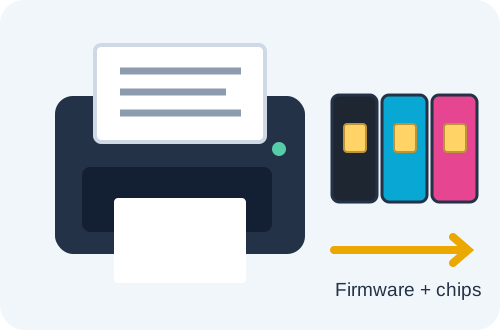
| HP inkjet | Check cartridge family, region, subscription history, HP+ activation and any chip or firmware-related message. |
HP states that activated HP+ printers require Original HP Ink for their lifetime. HP also documents dynamic-security restrictions affecting certain non-HP chips or circuitry. A compatible full set and a restart do not override those requirements. Tell us the exact model and whether HP+ was activated before trying further replacements.
If the error appeared after an update, record that fact and the displayed message. Do not install unofficial firmware, downgrade software or disable protections as a general troubleshooting shortcut. We can check the supplied cartridge’s compatibility without treating all recognition errors as the same fault.
Using HP 953XL? Read our HP 953XL firmware and chip-compatibility guide for update settings and the details needed if recognition changes after an update.
7. Send these details and photos to Ink-Prints
Your support checklist
- Full printer model number, including any suffix.
- Ink-Prints order number and the affected cartridge code or colour.
- A photo of the printer, with its model label readable where possible.
- Photos of all ink cartridges while installed, showing their positions and labels.
- Photos of error messages on the printer panel and computer screen.
- A short list of checks tried and whether originals and compatibles are mixed.
Take photos with the printer stationary and its cartridge area safely accessible. Do not reach inside while it is moving. If a label cannot be seen without removing a cartridge, explain that rather than dismantling the printer for a photograph.
Keep the complete wording of an error visible, but crop out unrelated documents, passwords or personal information on the computer screen. Photographs help us compare the cartridge positions and reported fault. They do not guarantee a remote diagnosis; we may ask for a model-specific check or refer a hardware problem to the manufacturer.
Frequently asked questions
Does “not recognised” mean that the cartridge is empty?
Not necessarily. A recognition message concerns the printer’s ability to identify or accept the cartridge. Capture its wording so we can distinguish it from an ink-level warning.
Should I run head cleaning to clear this error?
Resolve recognition first. If the printer later accepts the cartridges but prints with gaps or absent colours, move to a nozzle or quality test and the separate print-quality guide.
Should I keep removing and refitting the cartridges?
After the documented installation and restart checks, contact us if the same error returns. Repeating the same unsuccessful steps gives us less information than photographs and a clear fault history.
Find the guide for your printer and ink family
Check the full model, including its letters and suffix, before choosing a replacement. These pages show matching ink options; they do not replace the printer manufacturer’s maintenance instructions.
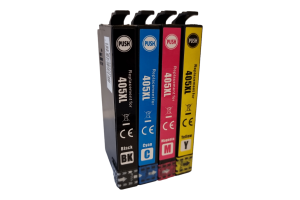
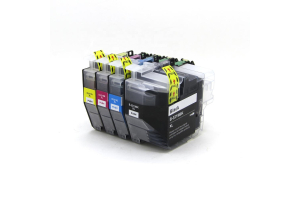
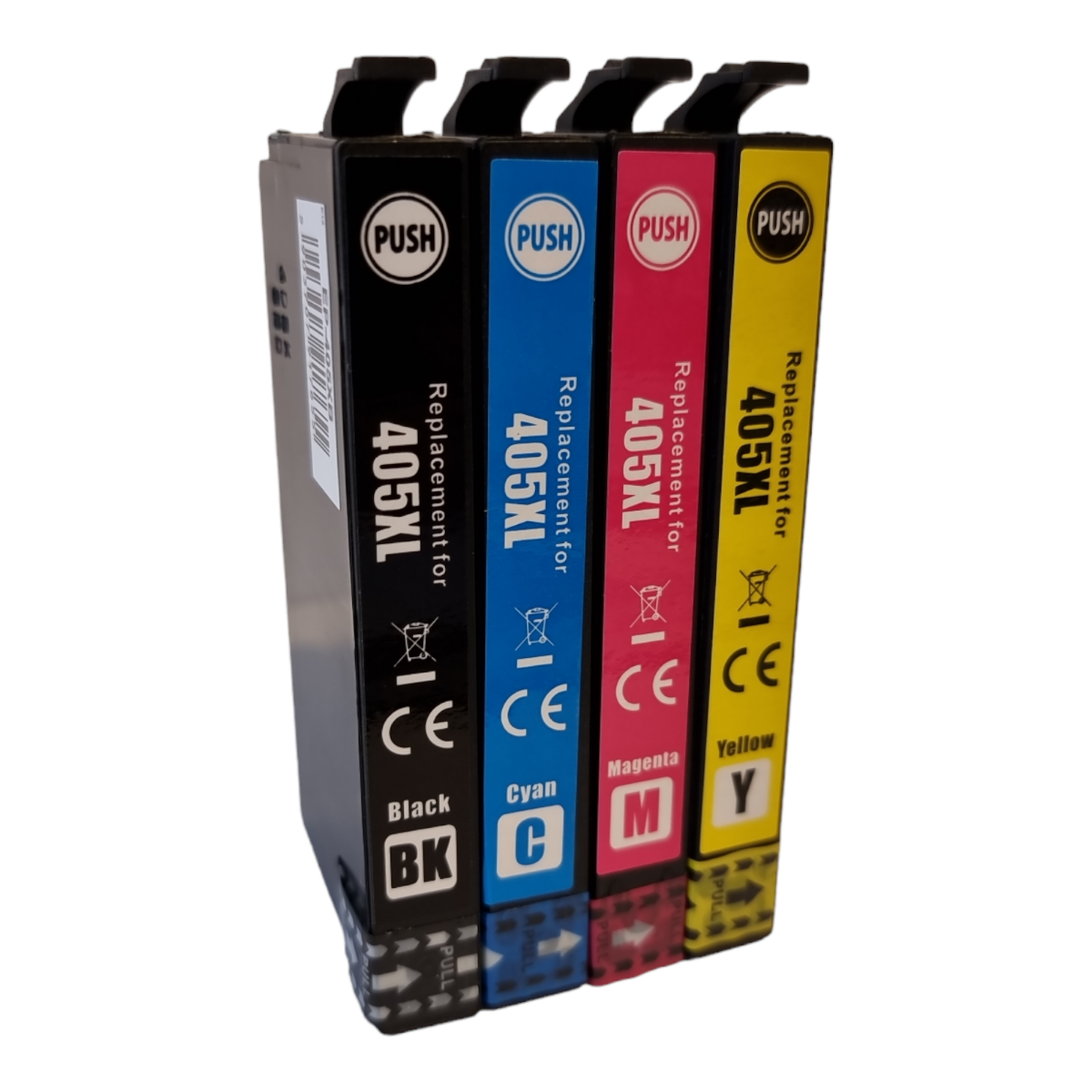
Epson 405XL · Epson 604XL · Brother LC426XL · Canon 570 / 571
Not sure what to buy? Send us the details below before ordering another cartridge. A recognition fault and a missing-colour fault need different checks, and replacing a complete set is not the answer to every problem.
Ask Ink-Prints to help diagnose the problem
Use our contact page to start your enquiry. Tell us your printer model, order number, the exact symptom and which checks you have already tried. We will explain how to send the photos needed for the next step.
Contact Ink-Prints for helpManufacturer references
The practical checks above combine our customer-support experience with manufacturer guidance. The links below apply to their stated models or printer types. Follow your own model’s manual where its procedure differs.
Recent Posts