+44 782 583 7455

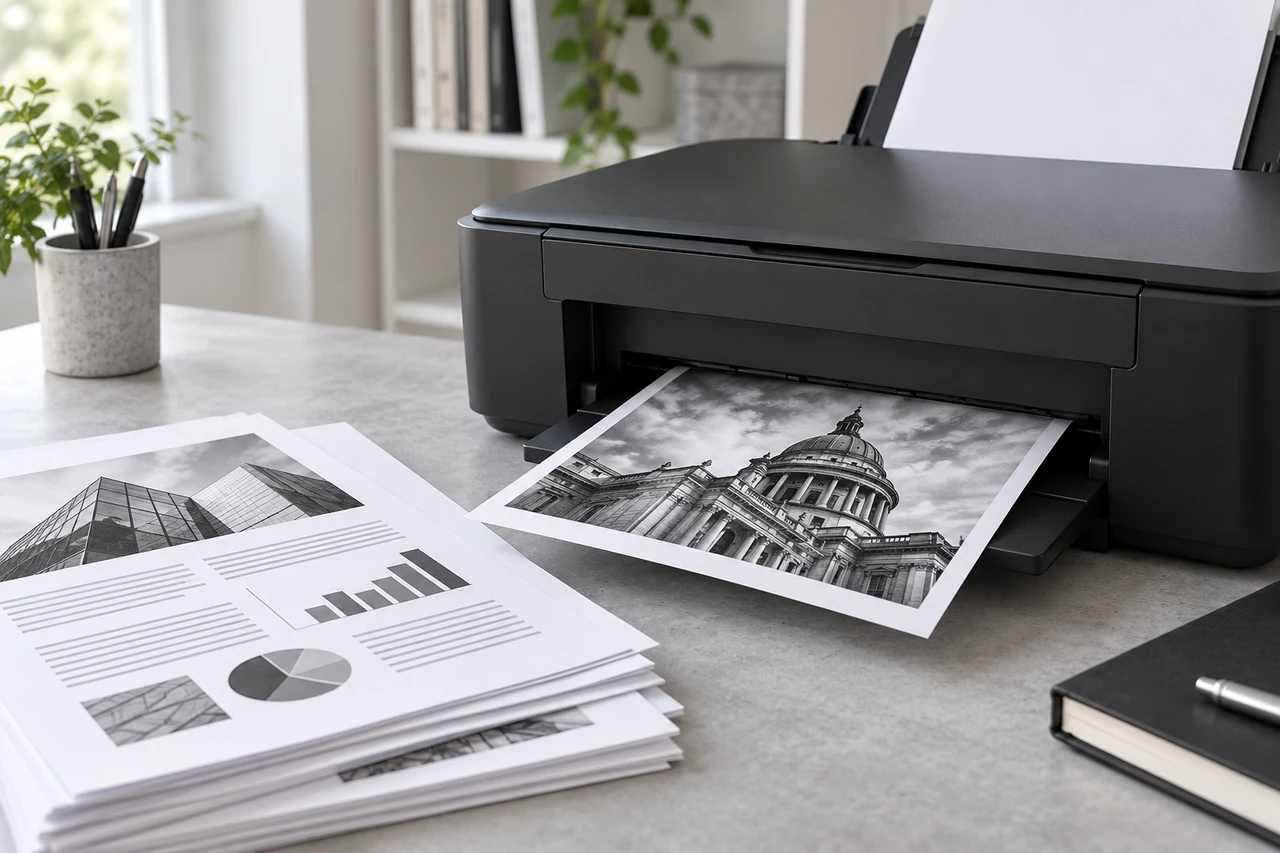
AI-generated editorial illustration. Generic scene, not an Ink-Prints test result or an exact printer/cartridge model.
When a printer feeds paper but leaves it blank despite showing full ink, first print its own diagnostic or quality-check page. If that internal page prints normally, investigate the document, application and print settings. If it is also blank, investigate supplies and the printer's supported maintenance route.
In this guide
Make one controlled comparisonCheck the file and print routeIf the printer's own page is blankUse maintenance only when indicatedInformation that makes support usefulCommon blank-page questionsAn ink-level display does not directly test whether ink reaches the paper. A recently installed cartridge, a full tank or a clear error screen cannot, by itself, rule out a supply or print-quality problem.
Make one controlled comparison
Use plain paper of the supported size and follow the exact model's diagnostic instructions. Keep the result and note whether the whole page is blank or only a particular colour is absent.
| Test result | Next direction |
|---|---|
| Internal pattern normal, document blank | File, application, selected printer and settings |
| Internal pattern entirely blank | Correct supplies, installation and supported quality checks |
| Black missing but colours present | That channel rather than all cartridges |
| Print normal but copy blank | Copy/scanner path and document placement |
| Error instead of a test | Resolve the exact displayed condition first |
This comparison narrows the investigation without proving a particular component is faulty. Avoid changing cartridges, drivers and paper settings simultaneously, otherwise you cannot tell which change mattered.
Check the file and print route
If the internal page is normal, confirm you selected the intended physical printer and not a virtual PDF destination or another device. Inspect print preview and the selected page range. Try a small known document from another application.
Check that white text, hidden layers or a blank selected page are not being sent. If only one file or application fails, that is useful evidence against immediately replacing every ink supply.
For copying, confirm the original is placed as the model requires. A copying problem is not automatically a cartridge problem if ordinary printing works.
If the printer's own page is blank
Confirm the exact supply family, correct colour positions and preparation of any recently installed cartridge. Remove only packaging identified in the product instructions. Do not peel arbitrary labels or touch contacts and nozzle surfaces unnecessarily.
For tanks, inspect levels using the manual's guidance rather than relying only on a screen estimate. Do not exceed the upper filling limit or add a different series because the original is unavailable.
If the printer reports unrecognised ink, address that message first through the recognition guide. A detection failure and a blank diagnostic pattern are different conditions.
Use maintenance only when indicated
Follow the model's nozzle or print-quality check and cleaning guidance. Do not assume that a cleaning procedure for an Epson tank printer applies to a two-cartridge HP or Canon, or to a laser printer using toner.
Keep before-and-after patterns and observe the manufacturer's cycle and waiting limits. Do not keep running cleaning routines simply because the ink indicator still looks full. Cleaning consumes ink and can create another maintenance requirement without correcting the underlying fault.
Avoid household solvents, forced flushing, syringes and dismantling a fixed head. If the supported procedure does not improve the pattern, stop and seek model-specific help rather than escalating an internet cleaning recipe.
Information that makes support useful
Record the complete model, cartridge or bottle code, whether supplies were recently changed, the exact message if any and the internal-test result. Include photographs of installed supplies and the blank or incomplete pattern.
Explain whether the issue began after replacement, refill, a long unused period or a software/settings change. If only one colour is absent, say which one. A short factual timeline helps more than a long list of unrecorded resets.
Use Find Ink to verify the family before buying a replacement. A new set should solve an identified supply need, not serve as the first guess for every blank page.
Common blank-page questions
Can a full cartridge still produce no ink on paper?
A status reading does not prove complete output. Use the printer's diagnostic pattern and model-specific checks.
Should I clean repeatedly until something appears?
No. Respect the manual's limits and pauses. No improvement is a reason to reassess, not to repeat indefinitely.
Does a blank copy prove the head is blocked?
Not if ordinary printing works. Check the copy/scanner path and original placement too.
Should I replace every colour?
Not without evidence. Identify whether the issue affects one channel, the whole internal pattern or only a document.