+44 782 583 7455
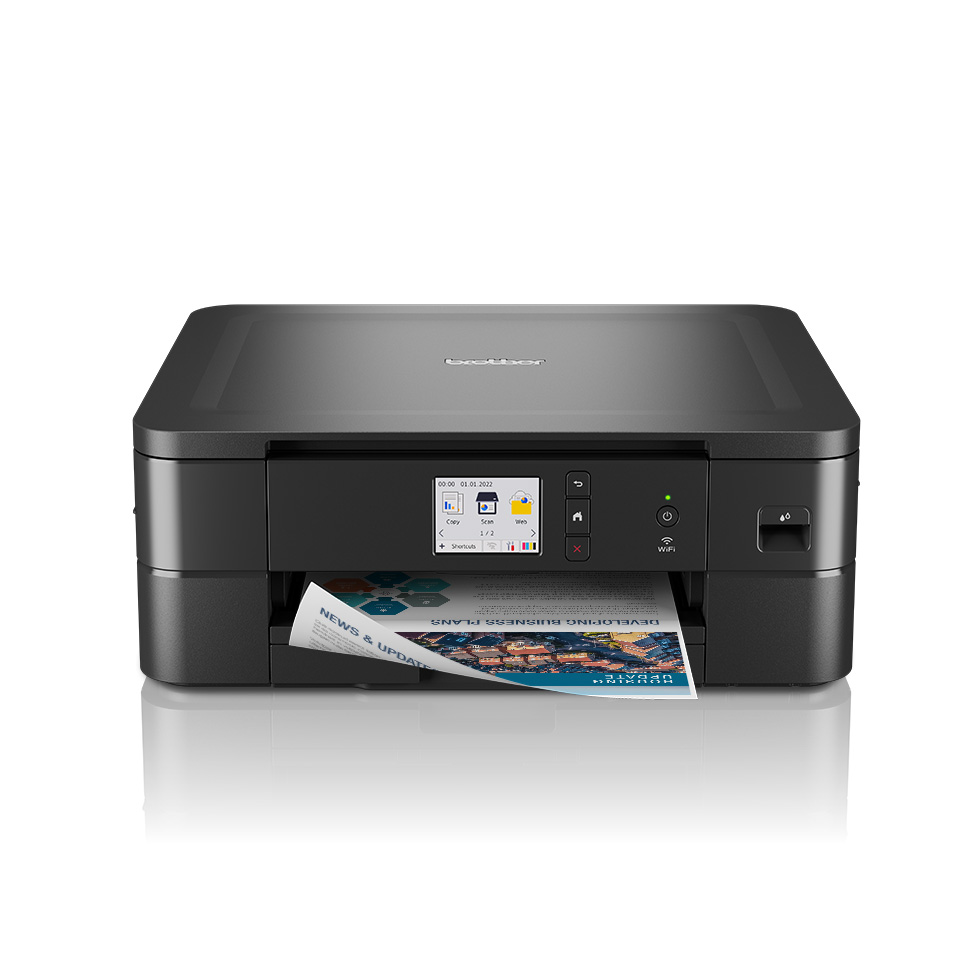
Brother DCP-J1140DW - manufacturer model image. Check your exact printer before choosing ink. View this printer.
Brother's Cannot Detect message concerns cartridge detection. It is different from a poor-quality print or an ordinary low-ink warning. For the LC421 UK models covered here, first confirm the cartridge number and the colour identified by the display, then follow Brother's installation guidance.
In this guide
Read the message preciselyConfirm the LC421 familyCheck installation without dismantlingOriginal and compatible suppliesStop and collect evidenceCheck the right rangeThe relevant models include DCP-J1050DW, DCP-J1140DW and MFC-J1010DW. This is not a universal instruction for every Brother printer or for similarly named machines sold in another region.
Read the message precisely
Photograph the display before changing anything. Cannot Detect, Wrong Ink Colour and Replace Ink are not interchangeable descriptions. Note whether the cartridge was newly installed, previously working or an old one reinserted during another check.
| Situation | What to establish |
|---|---|
| New cartridge not detected | Correct family, colour and documented insertion |
| Wrong Ink Colour | Labelled colour against the correct slot |
| Used cartridge reinserted | Follow the model's guidance for that condition |
| Accepted ink but missing print | Print-quality checks, not detection resets |
Brother's exact-model troubleshooting includes installation and wrong-cartridge causes. The message is therefore not automatic proof that a particular firmware change or mixing of brands caused the fault.
Confirm the LC421 family
Use the model label and UK consumables information. The DCP-J1050DW page and MFC-J1010DW page provide shopping routes for those exact machines.
Check the replacement label, not just the seller's order title. LC422XL and LC426XL are not alternatives for a printer requiring LC421. A cartridge that looks close or can be pushed partway into the bay is not evidence of compatibility.
If the printer is using subscription supplies, tell support that too. The cartridge and account arrangement can matter separately from the family printed on a retail replacement.
Check installation without dismantling
Follow the manual for the cartridge identified on the display. Brother's guidance for these models includes careful reinsertion until the cartridge locks into position. Do not treat a forceful push or repeated rapid insertion as a better test.
Keep working cartridges installed unless the documented procedure tells you otherwise. Do not shake, dismantle or modify the new cartridge, and do not touch the areas the manual identifies as sensitive.
Check that the ink cover closes normally and that no packaging identified for removal remains in place. If the cartridge or bay resists the documented operation, stop. A bent or damaged component is not repaired by applying more pressure.
Original and compatible supplies
Brother recommends its original supplies. A compatible product is a separate supplier's replacement and needs its own current compatibility support. Some non-original cartridges may not be detected in a particular situation; that should be investigated for the supplied product and exact machine.
Do not assume that every original/compatible mixture is blocked by one universal rule. Nor should you treat a previously working cartridge as proof that all future replacements will behave identically. Keep the actual labels and timeline available.
We do not recommend moving chips, fitting tape over sensors, using hidden service menus or installing unofficial firmware to force acceptance. Those actions also make the original fault harder to assess.
Stop and collect evidence
If the supported installation checks do not resolve the message, send the complete printer model, exact error, affected colour, order reference and cartridge-label photographs. A photograph of the cartridges in their normal installed positions can help identify a wrong-slot or wrong-family problem.
Explain whether the cartridge was ever accepted and whether the issue began immediately after replacement. If support needs further checks, perform them one at a time so the result is meaningful.
Use our general cartridge-recognition guide for the information checklist, while keeping the Brother-specific manual as the authority for handling the printer.
Should I run head cleaning?
Not to fix Cannot Detect. Head cleaning is for suitable print-quality symptoms after supplies are accepted.
Can I clear it by confirming the cartridge is new?
Answer any printer prompt accurately. Do not claim an old cartridge is new merely to change an indicator.
Does the error prove the ink is empty?
No. Detection and remaining-ink messages describe different conditions.
Should I remove all four cartridges overnight?
That is not a routine supported first step for this problem. Follow the exact-model procedure and contact support if the indicated replacement remains undetected.
Check the right range
Compare the labelled pack contents and current availability in our Brother LC421 / LC421XL range. Match your exact printer before ordering; ask us if the model or cartridge code is unclear.